How to reset Apple Watch: frozen, locked or unpairable
How to reset Apple Watch safely using Apple's official steps for frozen, locked or unpairable watches, including Activation Lock checks.
Three situations usually send people looking for a reset on an Apple Watch: the screen has frozen, the passcode is gone, or pairing has broken down. A fourth is simpler. The watch is being handed to somebody else. Apple’s Australian support pages do not treat those scenarios as one generic fix. They split them into separate paths depending on whether the paired iPhone is still available, whether the passcode is known and whether the device still needs to stay tied to the current Apple Account.
When the paired iPhone is still nearby, start there. That route unpairs the watch, wipes it and usually leaves the cleanest path back into setup. Without the phone, the watch can still be erased on-device. A forgotten passcode pushes the job to a charger-based recovery flow instead. Apple indicates the reset itself usually takes about 10 to 15 minutes, with extra time for restoring settings or adding cellular service again.
“Unpairing your Apple Watch restores it to its factory settings.”
— Apple Support
Before you reset, pick the right path
Do the sorting first. Apple Support’s unpair and erase guide treats the iPhone method as the preferred option when the paired phone is still close by. It also creates a fresh backup for many users during unpairing, which can make the next setup far less annoying.

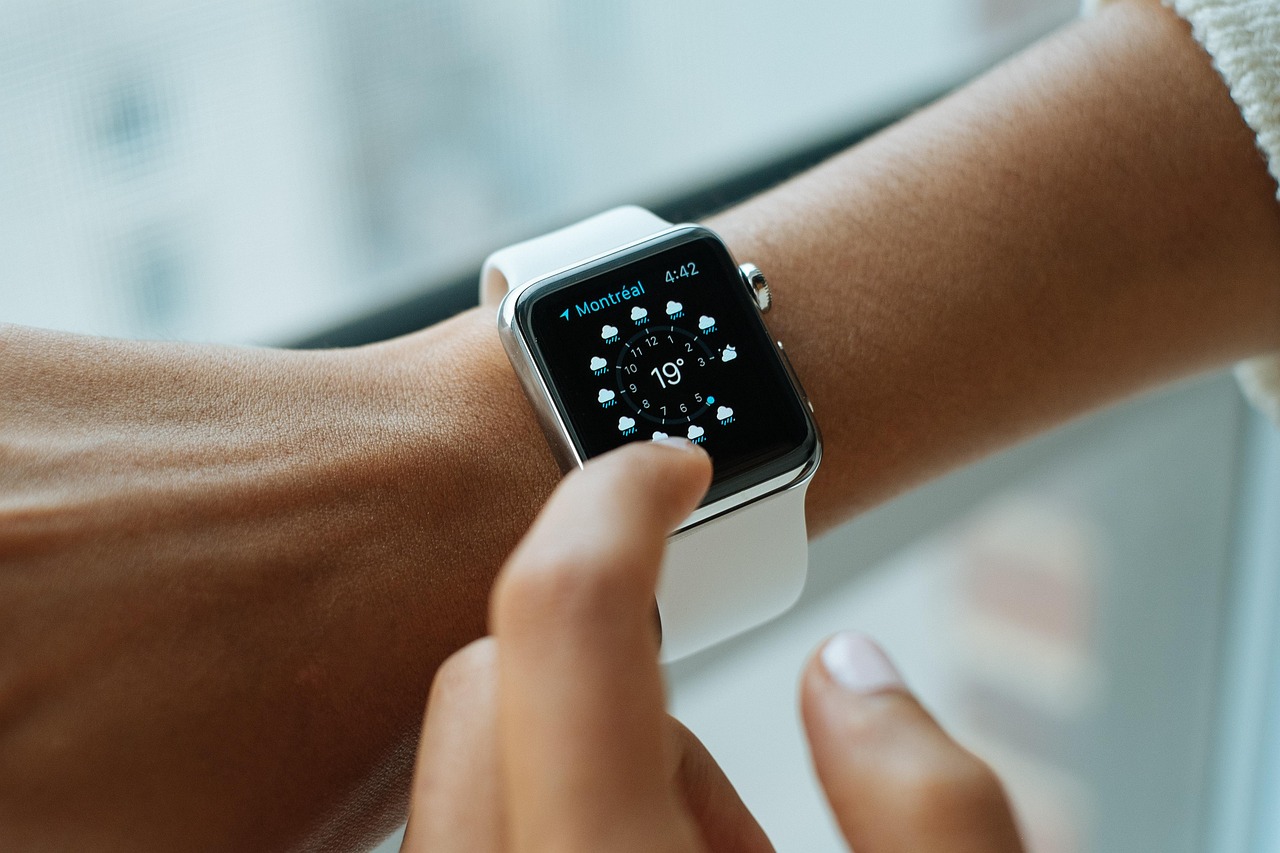
Illustration: stock image via Pexels.
Run through these checks before touching reset:
- Confirm the paired iPhone is charged, connected and close to the watch.
- If the watch has cellular service, be ready to decide whether to keep or remove the mobile plan during unpairing.
- If the watch is being sold or handed to someone else, sign out carefully so Activation Lock does not block the next owner.
- If the iPhone is no longer available, move straight to the erase-on-watch method below.
That distinction shapes the rest of Apple’s advice. Unpairing is the cleaner reset when the iPhone is still in play. Direct erasing is the fallback when it is not. Apple also warns that a reset done without proper unpairing can leave Activation Lock behind, which matters if the watch is changing hands.
1. Unpair the Apple Watch from the paired iPhone
Phone and watch still talking? Use that advantage.
Apple treats unpairing through the Watch app as the safest reset because it wipes the device and cleanly breaks the pairing at the same time. For anyone keeping the watch, that usually means a smoother trip back into service.

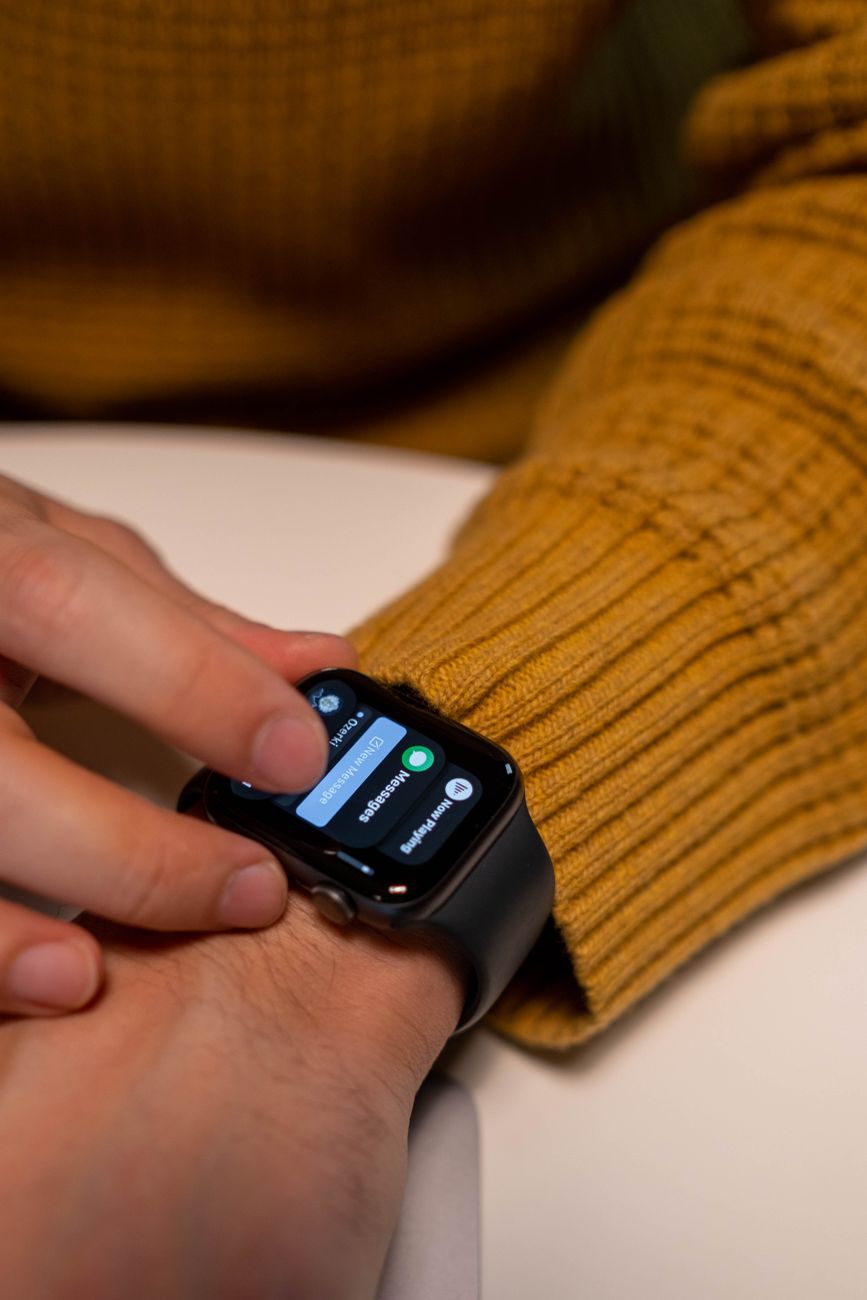
Illustration: stock image via Pixabay.
- Keep the Apple Watch and iPhone close together.
- Open the Watch app on the iPhone.
- Tap My Watch, then All Watches at the top of the screen.
- Tap the info button next to the watch that needs resetting.
- Tap Unpair Apple Watch.
- If the watch uses cellular service, choose whether to keep or remove the plan. Keep it if the same person will pair the watch again. Remove it if the watch is leaving the account.
- Enter the Apple Account password if prompted. This turns off Activation Lock.
- Wait for the iPhone to finish unpairing and let the watch erase itself.
More happens here than a simple wipe. The iPhone also severs the pairing record and usually leaves behind a recent backup. That lowers the friction when the device comes back online. Apple says this is the method to use before service, resale or a fresh start on the same account.
On a sluggish watch, that matters. The iPhone can sometimes finish the erase even when the watch screen is lagging or refusing to behave.
2. Erase the watch directly when the iPhone is not available
No paired phone available? The watch can erase itself, but the account tie may stay behind. Apple says the watch can be wiped from its own settings menu, and that is the practical fallback when the phone is gone.
- Open Settings on the Apple Watch.
- Tap General.
- Scroll to Reset.
- Tap Erase All Content and Settings.
- Enter the passcode if the watch asks for it.
- If the watch has cellular service, choose whether to keep or remove the plan.
- Tap Erase All to confirm.
Useful in a pinch, especially if the paired iPhone has been lost, traded in or wiped first. It also works when the watch is heading for repair and the phone is not on hand. The catch sits with the account rather than the button sequence: the watch may still be tied to the original Apple Account unless those steps are completed later.
“If you don’t have the paired iPhone, you can erase your Apple Watch, but Activation Lock will remain.”
— Apple Support
Keep that line in mind. If the goal is resale, use the iPhone method whenever possible. Otherwise, the original owner may still need to remove the device from their account before another person can finish setup.
3. Reset an Apple Watch when the passcode has been forgotten
Passcode gone. That changes the route again.
Apple’s answer is a charger-based recovery flow rather than the usual Settings menu.

- Put the Apple Watch on its charger.
- Press and hold the side button until the power screen appears.
- Press and hold the Digital Crown until Erase all content and settings appears.
- Tap Reset, then tap Reset again to confirm.
- Wait for the watch to finish erasing.
- Set the watch up again after the reset is complete.
Apple’s forgotten passcode instructions present this as a last-resort path for a watch that cannot be opened through the usual menus. After the wipe, the watch can be paired again, but the owner may still need the Apple Account details used on the device before the reset.
Important distinction: wiping the hardware is not the same thing as clearing ownership. A reset watch can still ask for the original account during setup if Activation Lock remains active.
4. If the Apple Watch will not pair after the reset
If the erase finishes and pairing still stalls, the watch may need another wipe or a manual pairing attempt. Apple’s pairing troubleshooting page says both can be part of the recovery path when setup hangs or the camera cannot read the animation.

Work through these steps in order:
- Restart both the iPhone and the watch if pairing has frozen mid-process.
- Keep the devices close together and make sure Bluetooth and Wi-Fi stay on.
- If the pairing animation does not scan, choose the option to pair the watch manually.
- If the watch shows the old setup screen or seems trapped in a half-paired state, erase it again from the watch and retry.
- If the watch remains linked to a prior account, complete the Activation Lock steps before trying to pair again.
Read the warning literally. When the watch was reset instead of fully unpaired, the device can still be protected by Activation Lock. In that situation, another reboot may not help. The remaining problem may be the account lock.
“When you reset Apple Watch instead of unpairing it, the watch will still be protected by Activation Lock.”
— Apple Support
5. What to do next after the reset finishes
Reset complete does not always mean job complete. The next setup choices decide whether the watch comes back smoothly or stays stuck in setup.
- Pair the watch again through the Watch app if the same owner is keeping it.
- Restore from the latest backup if the watch offers that option and the prior setup should return.
- Re-add cellular service only if the user still needs it on that watch and that plan.
- Confirm the watch can reach the paired iPhone and complete sign-in screens without errors.
- If the watch is being sold or passed on, check that it no longer appears as locked to the old owner before handing it over.
Seen as a decision tree, Apple’s advice is fairly simple. Use the iPhone unpair method first. Use on-watch erase only when the phone is unavailable. Use the charger-based reset when the passcode is forgotten. If pairing still fails after that, the real issue is often Activation Lock or an incomplete unpair rather than the reset itself.
If the watch still refuses to finish setup after a clean erase and a fresh pairing attempt, contact Apple Support directly. At that point the remaining issue is usually account access, hardware service or a software fault that a second reset will not fix.

Pip Sanderson
Reviews editor on phones, wearables, and the gear that lands in Australian shops. Reports from Melbourne.