What is BitLocker? Windows encryption in 2026
BitLocker 2026 protects Windows laptop data with disk encryption, but recovery keys and Windows editions decide how it works.
What is BitLocker? Microsoft built it as a disk-encryption feature for Windows PCs, mainly to stop someone reading files from a lost, stolen or retired laptop without the right sign-in, recovery key or hardware-backed unlock. Its own documentation gives the short version: BitLocker provides encryption for entire volumes, which means it protects a whole drive rather than one folder at a time.
For Australian Windows users in 2026, the question is less about whether encryption has value. The practical issue is whether a PC already has it, which Windows edition is installed, and where the recovery key sits before a repair, motherboard swap or account lockout turns protection into a support job.
“BitLocker is a Windows security feature that provides encryption for entire volumes”
Source: Microsoft Learn
What does BitLocker actually encrypt?
BitLocker encrypts the data stored on a Windows drive. Encryption scrambles information so it cannot be read without the correct key. Full-volume protection covers the operating system drive and, if configured, other fixed or removable drives.
That protection matters after the machine leaves its owner’s hands. A thief who removes the storage drive from an encrypted laptop should not be able to browse documents, browser cache and saved files by plugging it into another computer. The files are still present. Their contents are locked.
Most modern setups pair BitLocker with a Trusted Platform Module, or TPM. A TPM is a small security component, often built into the PC, that can store cryptographic material and check whether the machine has started normally. Microsoft says BitLocker can use TPM 1.2 or later for system-integrity checks, giving the device a way to detect some boot-level tampering before it releases the key needed to unlock the drive.
There is a boundary to that protection. BitLocker does not replace backups, antivirus software or strong account passwords. It protects data at rest. Once a user signs in and malware runs under that account, the files are already unlocked for that session.
Security researchers keep testing that boundary. Ars Technica reported in May 2026 that researchers had confirmed a YellowKey bypass against default Windows 11 BitLocker deployments, limited to TPM-only mode. For home users, the answer is not to abandon drive encryption. It is to treat it as one control, alongside firmware updates, sensible BIOS settings and backups.
BitLocker or Device Encryption: which one appears on a PC?
Two Windows labels cause most of the confusion. “BitLocker” usually refers to the fuller management feature available on Windows Pro, Enterprise and Education editions. “Device Encryption” is the simpler consumer version that can appear on supported Windows Home devices.
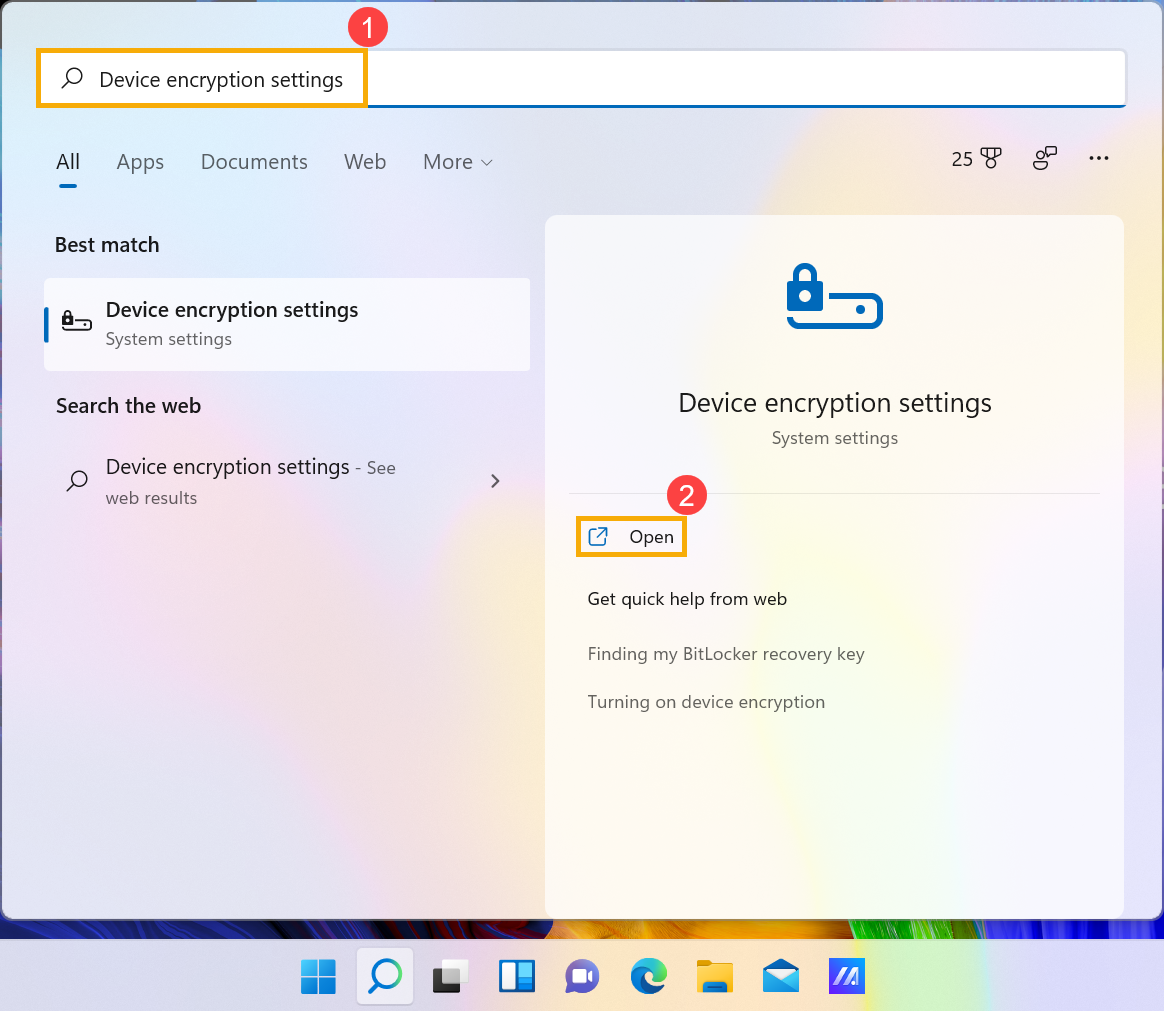
Microsoft’s Australian support page says users can check Device Encryption from Windows settings, and that it is linked to the account used on the PC.
“Device Encryption is turned on and a recovery key is attached to that account.”
Source: Microsoft Support
Many newer consumer laptops, especially devices signed in with a Microsoft account, may already be encrypted without the owner opening a BitLocker control panel. That is useful baseline security. It can also mean the recovery key is stored online with the Microsoft account rather than written down by the user.
Business machines need a different assumption. BitLocker may be managed by an employer through central device-management tools. On personal machines, the owner normally needs to check Settings, Control Panel or the Microsoft account recovery-key page. ASUS’s support guide shows how some Windows laptops expose both Device Encryption and Standard BitLocker Encryption depending on hardware support and edition.
What is a recovery key, and why does it matter?
A recovery key is the emergency unlock code for an encrypted Windows drive. Windows asks for it when the usual unlock path fails, including after some firmware changes, hardware repairs, security-setting changes or account problems.
ASUS describes the BitLocker recovery key as a 48-digit numerical password. The length is deliberate. It makes the code hard to guess, and also too long for memory to be a serious plan. Store it in a Microsoft account, print it, save it somewhere secure, or keep it in a password manager that can be reached from another device.
Here is the trade-off. Encryption makes a stolen laptop less useful to a thief, but it also makes recovery less forgiving for the owner. A user who cannot find the recovery key may be locked out of the data even if the laptop is physically theirs.
Should everyday Australian users turn it on in 2026?
For most portable Windows PCs, yes, as long as the recovery key is saved first and backups exist. The strongest case is for laptops that leave home or hold tax records, client files, school documents, saved browser sessions or personal photos. A lost bag, a rideshare mishap or an airport security tray can be enough.
An old desktop that never leaves a locked room is a weaker case, especially if it stores no personal data and is due for retirement. Even then, encryption can reduce risk before disposal, resale or repair. The test is simple: could someone learn something useful from the drive if they got hold of it?
Performance is rarely the deciding factor on modern hardware. Current Windows PCs are designed around encryption support, and many ship with it active. Account access, recovery-key storage and backups matter more.
What should be checked before switching BitLocker on?
Start with the Windows edition. If the PC runs Windows Pro, Enterprise or Education, the standard BitLocker controls should be available. If it runs Windows Home, look for Device Encryption instead. Microsoft says Windows Device Encryption is available on supported devices and can be managed from the Windows settings app.
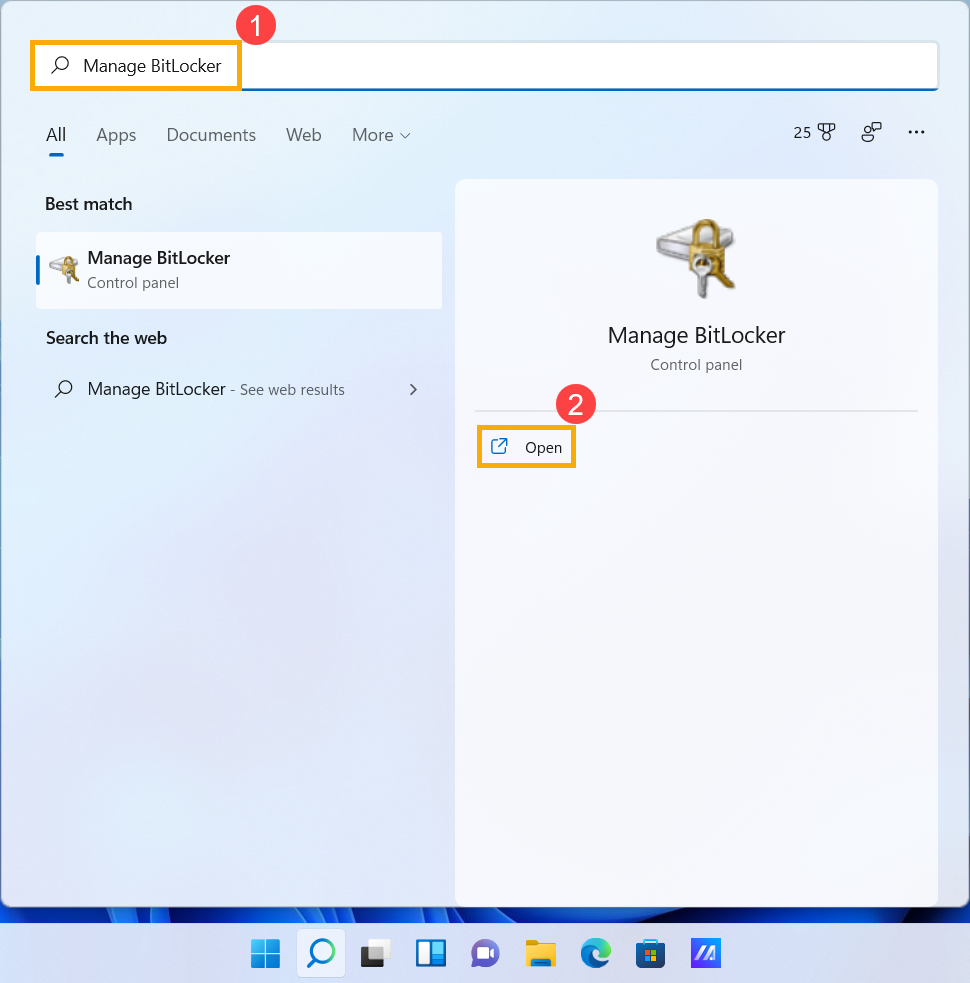
Then confirm the recovery key location. If the device is linked to a Microsoft account, check that account from another phone or computer before making changes. If it is a work or school device, assume the organisation may hold or manage the key. Do not reset, wipe or modify firmware settings without checking the administrator’s guidance.
Backups come next. BitLocker protects against unauthorised access; it does not protect against drive failure, accidental deletion or a cloud-sync mistake. A separate backup remains necessary.
Finally, record the change. Note the date, the Windows edition, where the recovery key is stored and whether the device is personal, work-managed or school-managed.
What changes next?
Microsoft has continued to broaden automatic device encryption. Its BitLocker documentation says Windows 11 version 24H2 removed some earlier device-encryption eligibility requirements tied to DMA protection and Modern Standby, which should make encryption available across more hardware classes over time.
Encryption is becoming a default Windows safety feature, not a niche Pro-edition setting. The user experience has not fully caught up. Many people first notice BitLocker only when Windows asks for a recovery key.
The practical advice is to check whether encryption is already on, save the recovery key somewhere reachable from another device, and keep backups. After that, BitLocker can do its quiet job: making a missing Windows laptop far less useful to anyone who should not have it.

Reza Khalil
Cybersecurity reporter covering breaches, threat intel, and the ACSC beat. Former incident responder. Reports from Canberra.