myGov passkey explained: how it works and when to use one
myGov passkeys let Australians sign in with a fingerprint, face scan or device PIN instead of a password. Here's how setup works.

myGov now lets Australians sign in with a passkey, bringing a once-niche security feature into a government portal many Australians already use. Instead of typing a password and then reaching for a code, some users can approve a sign-in with the same fingerprint, face scan, device PIN or hardware key they already use to unlock a phone or laptop.
That shift matters because passkeys have mostly lived inside big consumer platforms and password managers. myGov gives the idea a practical, local use case. For Australians who have seen the option appear inside a government account and wondered whether it is worth turning on, the short answer is that a myGov passkey replaces the typed secret with device-based proof, but it only works smoothly on supported software and hardware.
What is a myGov passkey?
A myGov passkey is a sign-in credential tied to a supported device rather than a memorised password. On the official myGov passkeys page, the service says users can sign in with biometrics such as Face ID or a fingerprint, a device PIN, or a physical security key.
Passkeys are a more secure alternative to passwords.
— myGov
In plain terms, the device does more of the work. Instead of typing the same password into a browser and hoping it is not reused, guessed or intercepted, the user unlocks a trusted device and lets that device confirm the sign-in. myGov says an account can store up to three passkeys, which gives people room to add, for example, a phone and a laptop rather than relying on a single screen.
The credential is harder to treat like a loose piece of information. A password can be copied, shared or typed into the wrong page. A passkey is bound to a supported device and unlocked with a local action, which is why security teams have been pushing the model as a safer default for mainstream logins.
How is it different from a password or SMS code?
A password asks the user to remember and enter a secret. An SMS code adds a second step, but it still depends on receiving and typing a number. A passkey changes the flow by shifting the proof of identity to the device itself, then asking for the same unlock step the person already uses every day.
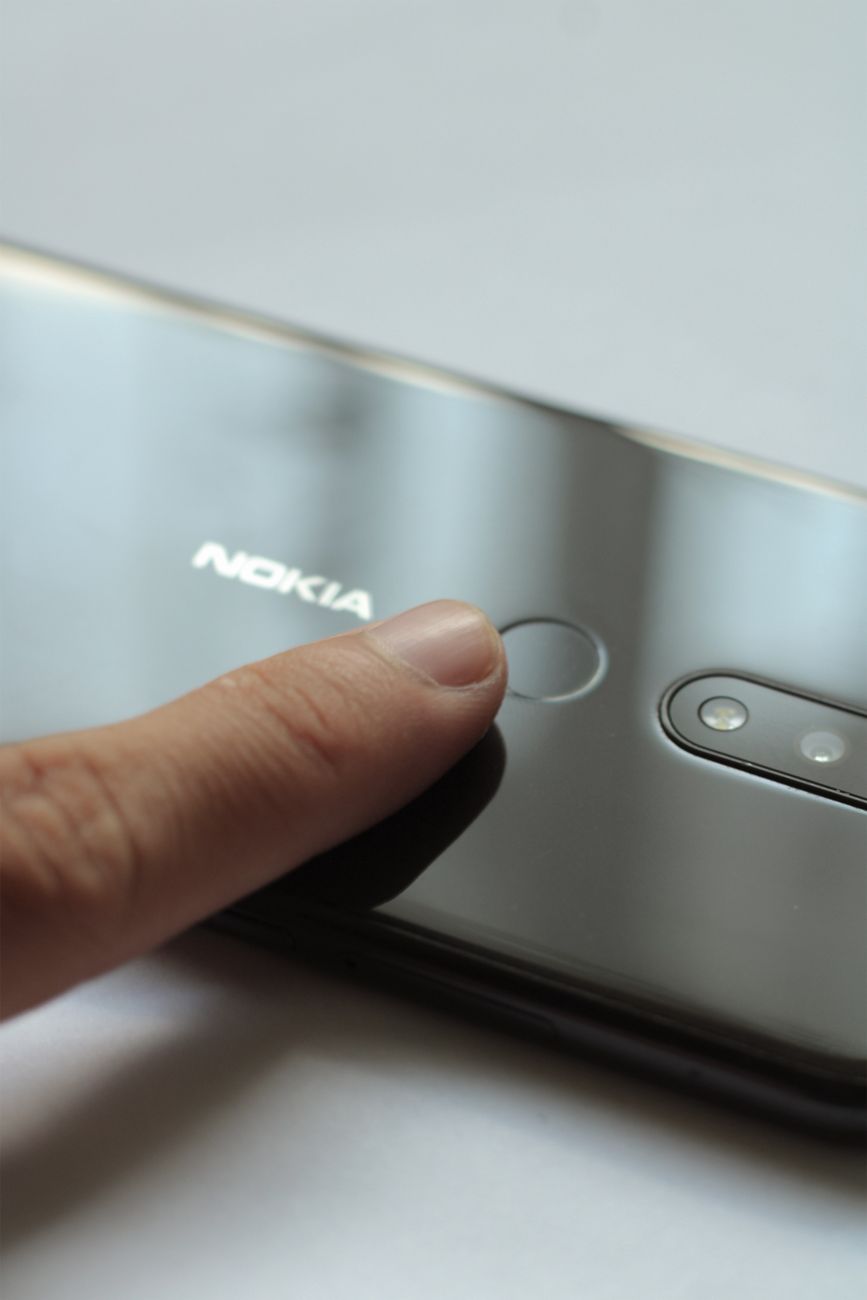
For myGov users, that can mean fewer moving parts at sign-in. There is no password to type into a fake page and no text message to wait for. If a sign-in is being approved with a fingerprint or face scan, the final check happens on the device, not inside a copied login form. That does not make an account invincible, but it does remove one of the weakest habits in consumer security, reusing or mistyping passwords across multiple services.
The broader technology is not unique to myGov. The FIDO Alliance describes passkeys as a replacement for passwords, while Apple’s Australian support page on passkey security says the model is designed to resist phishing and avoid shared secrets. That broader context helps explain why an Australian government portal would now adopt the same sign-in pattern.
It also explains why the feature feels less like an abstract cyber term and more like a convenience tool once it lands in a service people already use. Someone who would never set up a dedicated hardware token for a niche app may be more willing to use a passkey for government tasks already routed through myGov, simply because the login becomes shorter.
How do you set one up in myGov?
The Be Connected guide from the eSafety Commissioner’s programme and myGov’s own instructions describe a similar process. The user signs in to myGov, goes to the account’s sign-in settings, chooses the passkey option, then approves the request with the device’s usual unlock method.
That last step is the key idea. The setup does not ask the person to invent another long secret. It leans on the security that is already built into the phone, tablet or computer. If the device uses a fingerprint, face scan or PIN to unlock locally, that is usually the step myGov reuses during passkey creation.
Because myGov allows up to three passkeys, people with more than one regular device can spread the risk. A sensible setup is to add the phone used every day and then a second trusted device, such as a personal laptop, rather than leaving the account dependent on a single handset. The official guidance is also a reminder that passkeys are not ideal on every machine. A shared family computer, an outdated work laptop or a borrowed browser session may not be the best place to create one.
In the 4 July 2024 announcement of the rollout, Minister for Government Services and the NDIS Bill Shorten framed the change as a government service upgrade rather than a niche security add-on.
myGov is among the first digital government services in the world to implement passkeys—a simple, fast and more secure way to sign in.
— Bill Shorten, Minister for Government Services and the NDIS
That pitch is important because it shows what the service is trying to solve. The feature is not just about technical elegance. It is meant to remove friction for ordinary users while pushing them towards a sign-in method that is harder to steal at scale.
Which devices work with myGov passkeys?
Compatibility is the biggest practical limit, and it is the part most likely to decide whether a myGov passkey feels effortless or annoying. According to that Be Connected support guide, desktop users need at least Windows 10, macOS Ventura or ChromeOS 109. On mobile, the guide lists iOS 16 or Android 9 as the minimum.

Browser support matters too. The same guide names Chrome 109, Safari 16, Edge 109 and Firefox 122 as the baseline versions for passkey use. That means the issue is not simply whether someone owns a phone or computer. The operating system and browser both need to be current enough to handle the newer sign-in standard.
myGov’s own documentation also says the option can work through a security key, which is the hardware path often used by people who want a dedicated physical credential rather than a phone-based one. For most households, the simpler route will be a phone or laptop that already has biometric unlock enabled. Still, the security-key option matters for people who prefer a device they can keep separate from their everyday handset.
The takeaway is straightforward: if the passkey option is missing or setup fails, the first thing to check is not the account itself, but the age of the software and browser on the device being used.
When is a myGov passkey worth using?
For Australians who sign in to myGov regularly on a recent phone or personal computer, a passkey makes the most sense as a convenience and security upgrade rolled into one. It cuts out password entry, reduces the chances of handing over a reusable secret, and fits the device habits many people already have.
It is less compelling if the main device is old, rarely updated or shared with other people. In that case, the support requirements can turn setup into friction, and the practical benefit shrinks. The same is true for users who move constantly between managed work devices and personal hardware. A passkey is easiest when the login happens on a small set of trusted devices.
It also does not replace basic device hygiene. A passkey depends on the underlying device lock, so weak screen PINs, stale software and casual account-sharing still matter. The feature changes the sign-in step, but it does not remove the need to keep the device itself secure.
The broader point is that myGov has made passkeys concrete. For years, passwordless sign-ins were discussed as the future of account security. Inside myGov, the idea is much simpler. It is a new login option for a real Australian service, with clear compatibility rules, a cap of three saved passkeys and a setup flow built around the device’s existing unlock method.
What to watch next is not just whether more Australians adopt the feature, but whether more government and high-use Australian services follow the same path. If they do, passkeys will stop sounding like security jargon and start feeling like the normal way to sign in.

Reza Khalil
Cybersecurity reporter covering breaches, threat intel, and the ACSC beat. Former incident responder. Reports from Canberra.