How to use Chrome DevTools in 2026
A practical Chrome DevTools guide for 2026, covering the panels and workflows developers actually use to inspect, debug and optimise modern web apps.
A workable Chrome DevTools routine takes about 20 minutes to lock in. This guide covers the panels that matter most in 2026 — layout inspection, performance traces — and walks through where Google’s newer accessibility and AI-assisted tools actually help. Chrome for Developers describes it as “a set of web developer tools built directly into the Google Chrome browser.” For most teams, the fastest route from a broken page to an explainable fix is already sitting in the browser.
You do not need every tab. You need the half-dozen views that solve most day-to-day problems.
1. Open DevTools and simplify the workspace
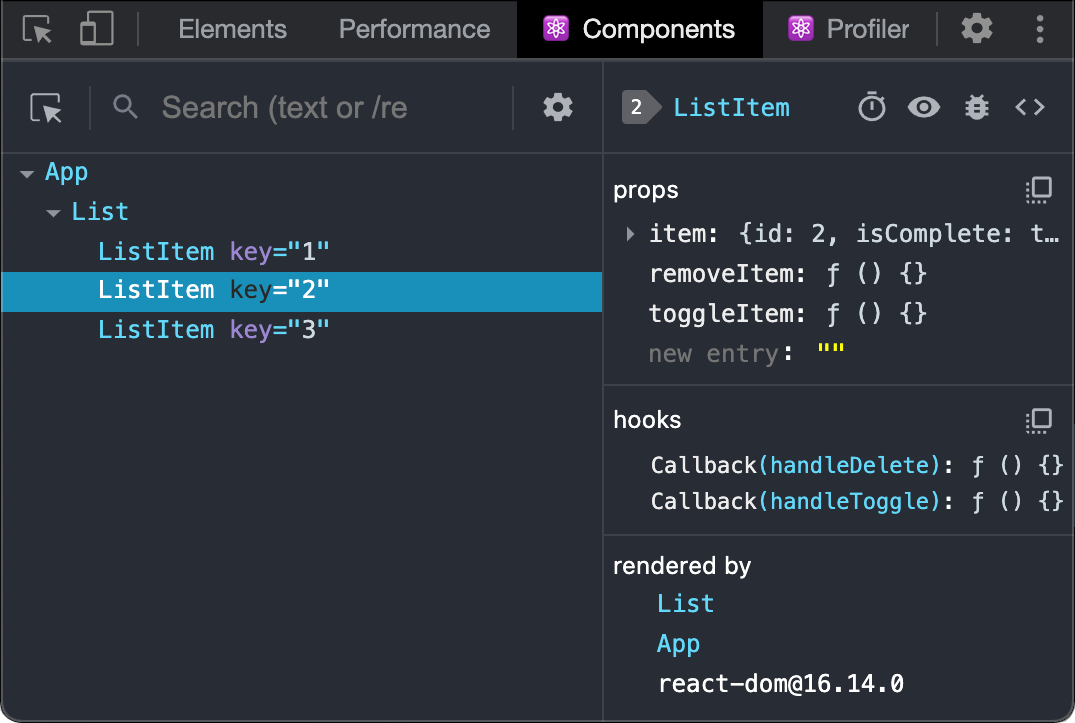
Cmd + Option + I on macOS. Ctrl + Shift + I on Windows and Linux. Dock to the side when responsive width matters, dock to the bottom when you need more vertical room for code. Then pin the panels you actually use: Elements, Console, Network, Sources, Performance and Accessibility.
DevTools moves fast, which is why this first pass matters. Google’s release notes are the best place to confirm when a panel shifts, a toggle disappears or a new workflow lands. A clean layout also makes handover easier — another developer can read the same screenshot or trace without asking where you docked something.
2. Start with Elements for layout and CSS bugs
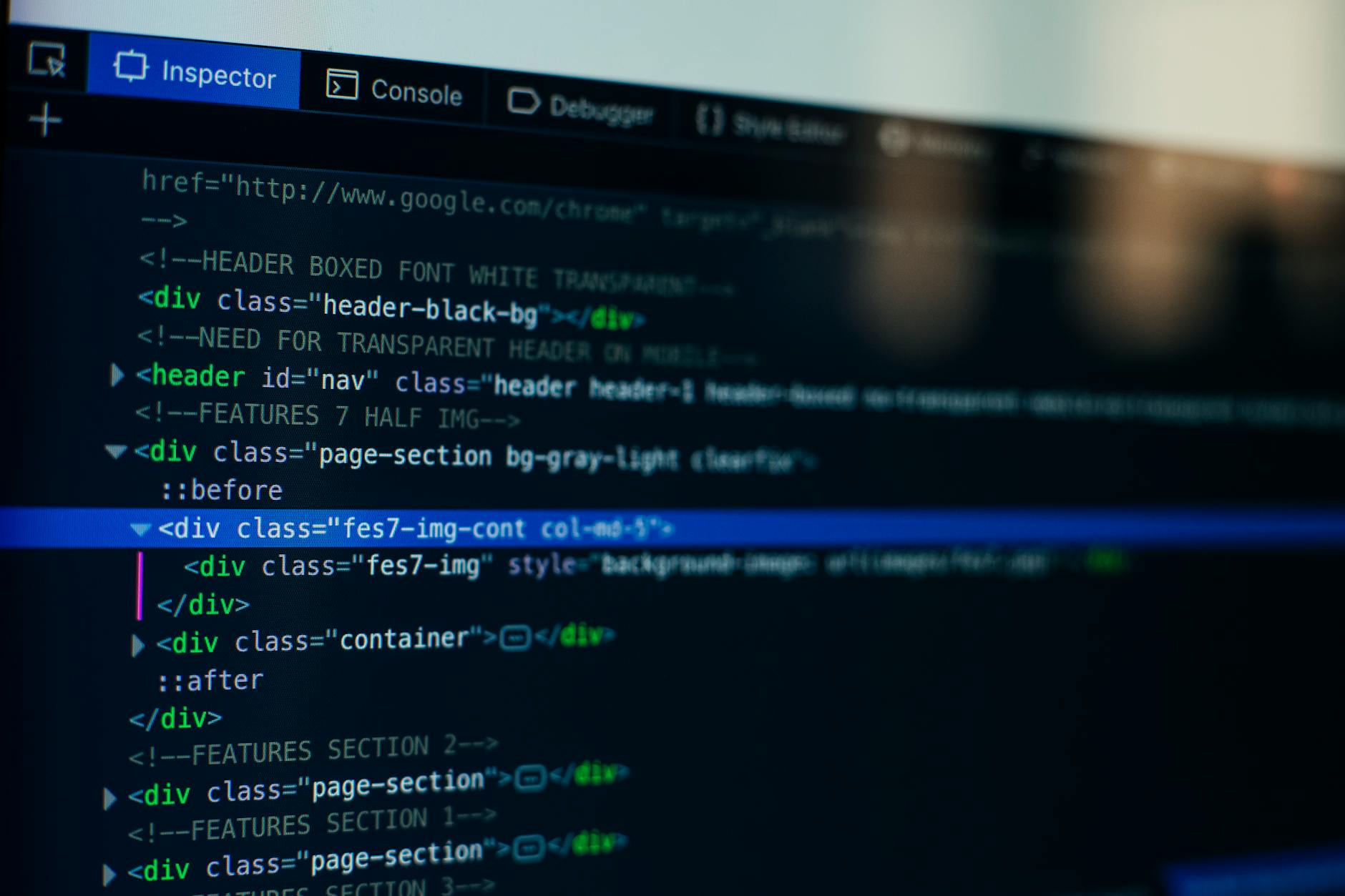
If the page looks wrong, begin in Elements. Use the element picker to select the broken button, card or container. Watch the DOM node highlight. The Styles pane shows which rule wins; the Computed view shows the final value after overrides.
Make live edits here before touching the codebase. Toggle classes on and off. Test a different display value. Check whether a flex or grid overlay explains the spacing issue. A fix that works in Elements is probably safe to carry back into the stylesheet. If it does not work, the problem may live in JavaScript, network data or a later selector.
Short version: inspect first, guess later.
3. Use Console for fast checks, not just error logs
The Console is still the quickest place to test an assumption. Confirm whether a selector returns the expected node. Check whether a variable is undefined. Inspect a network response already attached to the page. One line here can replace ten minutes of hunting through source files.
Keep the Console disciplined. Clear noisy output. Preserve logs when a reload wipes the signal. Treat repeated warnings as symptoms, not wallpaper. If an error points to a minified bundle, note the file and line, then move straight to Sources instead of staring at the stack trace.
4. Open Network before blaming the backend
A page loads slowly. An API call fails. An image refuses to render. In all three cases, reload with Network open. Filter by Fetch/XHR for application calls, or by JS, CSS, Img and Font when the problem is an asset. The status code tells part of the story. The timing waterfall tells the rest.
Inspect the request headers, response headers, preview and raw body before writing a bug ticket. Most “server” issues turn out to be a stale cache, wrong content type, blocked third-party script or a missing authorisation header. The practical habit: identify the failing request, compare it with a working one, then copy the exact URL, method and payload into the issue.
At that point the page is no longer a black box.
5. Move to Sources when the bug needs a breakpoint
Use Sources when the markup looks fine but the behaviour does not. Set a breakpoint on the line that mutates state, handles a click or processes the response from an API call. Reload if needed. Step through the code one call at a time.
The panel earns its keep when production code ships minified. Pretty-print the file, inspect the call stack and watch how values change between frames. An event firing too early. A promise resolving twice. A condition branching the wrong way. Breakpoints catch these faster than repeated page refreshes. Watch expressions: use them sparingly. Too many watches create their own noise.
6. Record a performance trace before trying to optimise
Performance work should start with evidence. Record a trace while reproducing the slow interaction or page load, then inspect where time goes. The 2026 habit worth building: tie observations back to Core Web Vitals — LCP, CLS and INP. These matter in search and they matter in user experience.
A trace shows whether the bottleneck sits in scripting, rendering, layout shifts or long tasks on the main thread. Knowing that keeps a team from optimising blind. Shaving bytes from an image is pointless if a third-party script blocks interactivity. Blaming JavaScript is a dead end if layout thrash is the real bottleneck. Start with one trace, one bottleneck and one change. Measure again.
7. Check accessibility in the same debugging pass
Accessibility should not be a separate clean-up round at the end of a sprint. Use the Accessibility panel when a control looks fine visually but behaves poorly with assistive technology. In a Chrome 148 update, author Matthias Rohmer wrote that “Chrome 148 makes the full-page accessibility tree the default.” Developers can now inspect the full tree without the old floating toggle.
In practice, this is where teams catch missing names, incorrect roles, broken heading structure or controls that announce the wrong state. Fixing those problems early often improves testability too — clearer semantics make DOM assertions simpler.
8. Treat newer AI-assisted tools as accelerators, not substitutes
The 2026 version of DevTools includes newer AI-assisted and crash-report workflows. Use them as context helpers. If a tool explains why a selector loses, why a stack trace loops or which panel to open next, that can save time. It should not replace the underlying check in Elements, Network, Sources or Performance.
The same logic applies to automation around DevTools. The current tooling stream also tracks the DevTools MCP server and CLI at version 0.25.0. Browser debugging is becoming more scriptable — useful context. The human workflow still starts with verifying what the browser actually shows.
Troubleshooting common snags
If DevTools seems to “miss” the problem, the issue is usually scope. Open the panel that matches the symptom. Layout bug: Elements. Failed request: Network. Broken interaction: Sources or Console. Slow page: Performance. Accessibility complaint: Accessibility.
Too noisy a trace or log? Reduce the test case. Reload one page. Trigger one click. Filter one request family. And if a panel changes between Chrome versions, check the official docs first before trusting an old tutorial. The product changes often enough that stale advice wastes real engineering time.
What to do next
Save one repeatable workflow for the team: inspect the node, confirm the request, set the breakpoint, record the trace, then check accessibility before shipping. That sequence covers most front-end failures without leaving the browser.
For developers returning to DevTools after a long gap, what matters in 2026 is not one magic feature. It is that the toolset now connects debugging, performance, accessibility and assisted explanation in one place. That is the update.

Soren Chau
Enterprise editor covering AWS, Azure, and GCP in the AU region, plus the SaaS shaping local IT. Reports from Sydney.