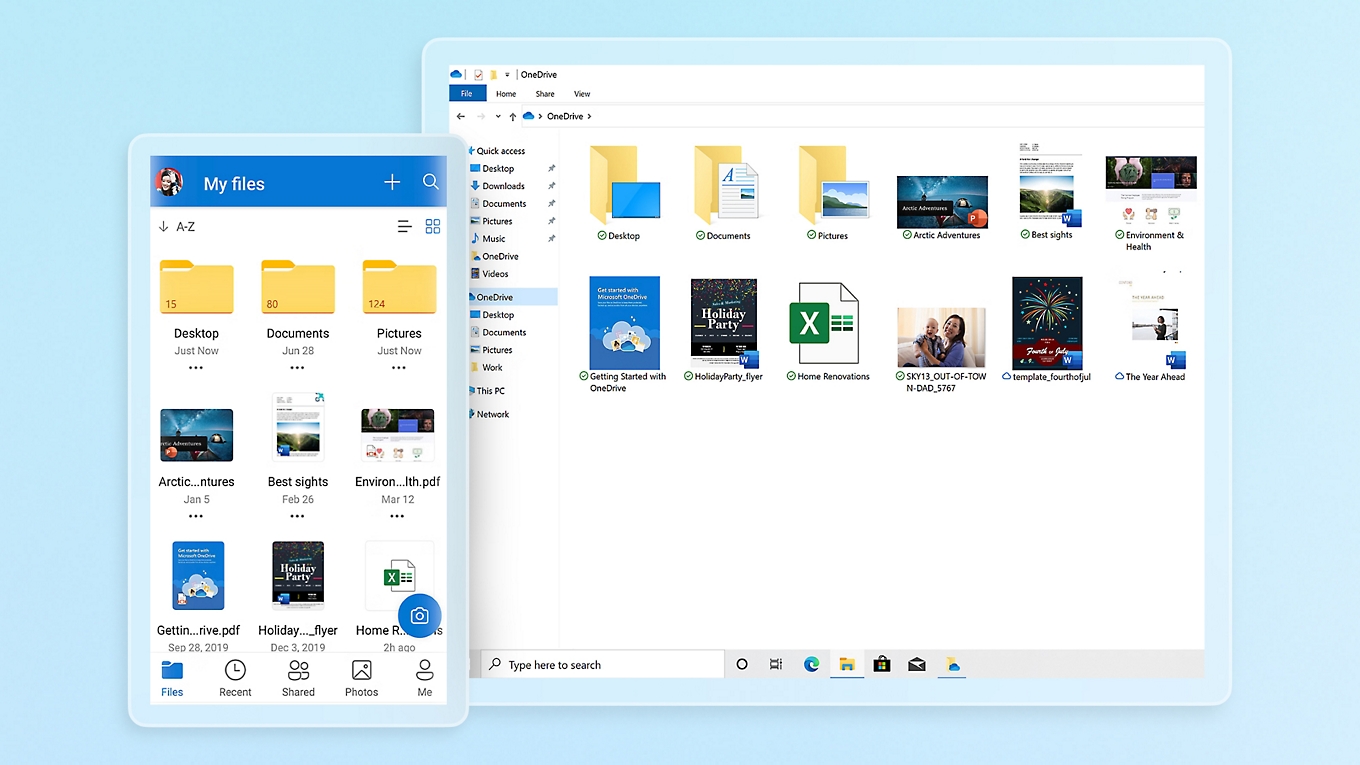
Download OneDrive 2026: Windows and Mac setup guide
How to download OneDrive safely in 2026 from Microsoft's official Australian page and set it up on Windows or Mac, including the split between personal and business accounts.

On many PCs, OneDrive is already sitting in the Start menu. In 2026, the real job is working out whether the machine needs a fresh install, whether the sign-in should be personal or work-related, and how much data to pull down on the first run.
Give it 10 to 15 minutes. Before setup, there may be no cloud icon in the taskbar or menu bar and no OneDrive folder in File Explorer or Finder. When setup is finished, both should be in place and the first files should start moving.
Before starting, confirm three basics:
- use the official Australian OneDrive download page
- have the Microsoft account, work account or school account ready
- check that the device has enough free local storage for the folders selected
Step 1: Check whether OneDrive is already installed
Check the machine before downloading anything. Windows 11 often ships with OneDrive ready to go, so a reinstall just wastes time.
“If you have Windows 11, OneDrive is already installed on your PC.”
— Microsoft
- Search for OneDrive from the Start menu on Windows 11. If it appears, open it and skip the download.
- Look for the cloud icon near the clock. A white or blue cloud usually means the sync client is installed and waiting for sign-in.
- Open File Explorer and check the left-hand column. A OneDrive entry usually means the folder has already been created.
- Run the same test on older Windows 10 PCs. Some still have the client preloaded, while others need a new install.
- On a Mac, try Spotlight first. No result usually means the app is absent.
If OneDrive turns up here, stop hunting for installers. Move on to sign-in and folder choices.
Step 2: Download the official app on Windows or Mac
No app? Use Microsoft’s page and nowhere else. That avoids stale packages, bundled installers and software mirrors.

- Open the OneDrive download page. That is Microsoft’s public page for the desktop app.
- Choose the desktop installer if several options appear. Browser, mobile and business links can sit nearby.
- On Windows, run the installer and allow the prompt if permission is requested.
- On a Mac, open the downloaded package and follow the macOS prompts. Folder and notification access may appear during setup.
- Ignore unofficial archives and bundle sites. The Microsoft page is also the easiest place to return to for a clean reinstall.
Check free space now, not after the first sync stalls. Files On-Demand helps, but a cramped SSD still causes headaches.
Step 3: Sign in and choose the right OneDrive folder
This is the handover from installation to everyday use. Pick the right account, place the folder where it makes sense and start with a small set of files.

- Sign in with the right account from the start. A personal Microsoft account is for home storage, while a work or school login belongs to employer-managed storage.
- Confirm the local OneDrive folder location before clicking ahead. The default is usually fine, but a small internal drive may make another location more sensible.
- Choose the folders that matter first. Large archives can wait until the sync is behaving normally.
- Turn on Files On-Demand, or the closest space-saving option offered. That keeps placeholders visible without downloading everything at once.
- Watch for the first sync prompt and the new local folder. Before setup there is no active OneDrive folder; after setup it should appear and begin showing recent files.
Microsoft’s plans and pricing page says the free consumer plan starts at 5GB. Fine for light use. Easy to fill if photos, desktop folders or project files go in straight away.
Step 4: Choose personal OneDrive or OneDrive for Business
Personal and business OneDrive can sit on the same computer, but they should not be treated as the same thing. The sign-in decides who controls the storage and what files belong there.

“Designed for business—access, share, and collaborate on all your files from anywhere.”
— Microsoft
- Use personal OneDrive for household files, photos and private documents. It sits under the user’s own Microsoft account and plan.
- Use OneDrive for Business when the sign-in comes from an employer or education provider. That storage usually lives inside a broader Microsoft 365 work or school setup.
- Keep personal and work storage separate if both accounts are on the same device. Mixing them makes later clean-up harder.
- Check workplace policy before pulling shared files down locally. Some organisations restrict downloads, offline copies or external sharing.
- On office-issued machines, follow the organisation’s sign-in path first. Dell Australia’s OneDrive for Business sync walkthrough shows the basic Windows pattern.
The shorthand is simple: personal login, personal storage. Company or school domain, business storage.
Step 5: Test syncing and fix the usual snags
Do one live test before declaring success. The setup is finished only when a file uploads, appears elsewhere and stays in sync.

- Create a small test file inside the OneDrive folder. A text note or small PDF is enough.
- Check the same file in the web view and on any second device tied to that account. That confirms both sign-in and sync are working.
- Look at the cloud icon first if nothing happens. A paused, signed-out or error state usually shows there before anywhere else.
- Re-open folder settings if the wrong files appear. That often means too many directories were selected during the first run.
- Give work accounts a little time. Dell Australia says synced files update automatically while the device is connected, and in some cases changes may appear about every 10 minutes.
- PCMag Australia says OneDrive supports uploads up to 250GB. That is generous, though it is still worth checking before the first large transfer.
- Low disk space can disrupt setup as well. Turn on the space-saving options and de-select large folders if the Mac or PC is already tight.
- If sign-in keeps failing, reinstall from the official Microsoft download page. That is often quicker than chasing a broken local install.
What to do next
From here, add the folders that matter, review sharing settings and keep work and personal storage apart. On managed office machines, check whether some folders are meant to stay online-only.
That is the job in 2026. Work out whether OneDrive is already on the machine, use Microsoft’s official download if it is not, then attach the right account and start with a small sync.

Soren Chau
Enterprise editor covering AWS, Azure, and GCP in the AU region, plus the SaaS shaping local IT. Reports from Sydney.