Plex media server setup 2026: how to build one at home
Plex media server setup in 2026 still starts with a free account, server download and device linking. Here is how Australians can get it running.
Plex is making its paid tier much harder to justify on price alone. In a pricing update, the company said a new Plex Pass lifetime licence will jump from $US249.99 (about $390) to $US749.99 (about $1,170) on 1 July 2026. The free Plex Media Server still covers the basic home-server setup.
So the practical question for most Australian homes is straightforward: how much of Plex still works without paying? In most cases, the answer is enough. A spare PC, Mac or NAS can still run the server, scan a library and link playback apps around the house in about 30 to 60 minutes. The latest price jump has drawn wider scrutiny too — Ars Technica covered it — but the setup flow itself hasn’t changed.
“The price of a new Lifetime Plex Pass will increase to $749.99 USD on July 1, 2026, at 12:01 AM UTC.”
— Plex, New Lifetime Plex Pass Pricing
This guide follows the free path first, then points out where paying still matters.
Before you start
Four things need to be in place before opening the installer: a computer or NAS that stays on, media files in tidy folders, a Plex account, and enough storage to grow. PCMag’s independent walkthrough pegged 4GB of RAM and 2TB of storage as a sensible floor for a basic build. That is within reach for most spare desktops, mini PCs and entry NAS boxes.

If the server lives in a lounge room, use the quietest machine you have. In a study or garage, prioritise storage space and reliable wired networking. The rule is simple: the device hosting Plex stays powered on whenever the household expects to stream from it.
1. Choose the box that will run Plex
Start with hardware already in the house before spending money. Plex’s server page is clear that the platform runs across a wide range of devices. First-time users don’t need a purpose-built rack or premium NAS.
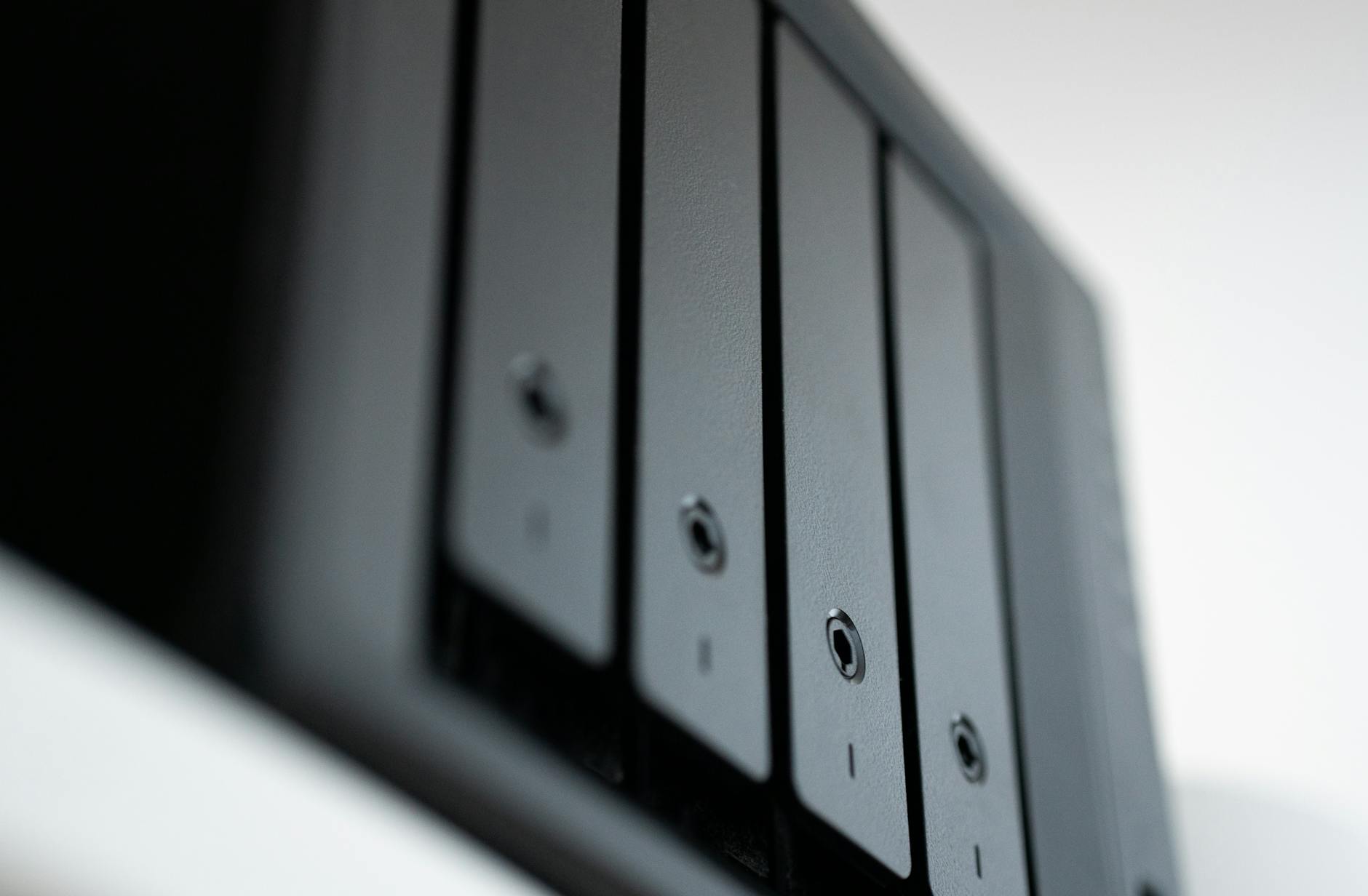
A spare desktop or mini PC is the easiest path if setup speed matters most. A NAS is the right call when the goal is low-power, always-on storage in a single box. An external drive works fine if the library is still small and growing slowly. The better choice is usually whatever machine can stay online reliably and has room for more storage later. Chasing premium hardware too early turns a simple media project into an expensive one fast.
2. Install Plex Media Server and sign in
Download Plex Media Server on the host device, run the installer, and open the setup page in a browser when it finishes. Plex uses an account-first setup — sign in before adding libraries.

Install the server software on the computer or NAS that will stay on. Sign in with a free Plex account. Name the server clearly so it is easy to spot later on TVs, tablets and phones. Leave the advanced settings alone until playback works on the local network. Plex is easier to troubleshoot when the goal is modest: one server, visible on one network, before worrying about anything else.
3. Add libraries and clean up the file names
Once the server is live, point Plex at the folders holding films, television shows, music or photos. This step decides whether the library looks clean or chaotic later. Slow down and check folder names before the scan begins.

Create separate top-level folders for films, TV and music. Add one library type at a time — don’t dump everything into one folder. Let Plex finish its first scan before renaming or moving anything. Then check a few titles manually. Are the right posters showing? Did the metadata land where it should? Most first-run problems start here, not in the installer. If a title doesn’t appear, or appears under the wrong name, cleaner folders fix it faster than reinstalling the server.
4. Link Plex to the screens that will actually use it
A server is only useful once it reaches the household’s screens. On a TV, streaming box or other big-screen app, Plex’s official account-linking guide says the process starts by signing in and entering the code shown on screen.

“The first thing you’ll usually do is to connect it to your Plex account.”
— Plex Support, Connect a Player App to Your Plex Account
Open the Plex app on the TV or streaming device. Sign in, or use the four-character code Plex displays. Enter that code while signed in to the same Plex account, then confirm the new app can see the server name you created during setup. If the app links but shows no media, the problem is almost always the server library or account match — not the television.
5. Test playback before paying for extras
Before spending on a subscription, make sure the free setup already covers the household’s needs. Start a film on one screen, test a TV episode on another, confirm the library opens quickly on the devices that matter most.

Play one file on the host computer to confirm the library indexed correctly. Play a second title on a television or streaming box. Check whether artwork, episode names and watch progress sync across screens. Only then decide whether a paid Plex Pass feature is worth adding. The new pricing makes this step count. Plex’s paid tier unlocks premium features — hardware transcoding, skip intros, mobile downloads — but the free tier handles the core job for plenty of households.
Troubleshooting common Plex setup problems
Setup stalls are frustrating, but the fix is usually small.
- The server does not appear on another device: make sure the host is signed in to the same Plex account and the player app finished linking.
- Media is missing from the library: check folder names, rescan, and separate films from TV if they were mixed.
- The wrong server name appears on screen: rename the host clearly and sign out of old or unused Plex accounts on the playback device.
- Playback works on the host but not the TV: relink the app before reinstalling the whole server. Most lounge-room issues start with the account connection, not the media files.
Fix one link in the chain at a time: server, library, account, then player app. A calm reset beats a full rebuild.
What to do next
Once the basics work, the rest is optional. Stay on the free tier, expand storage, or review whether Plex Pass adds enough value before the 1 July 2026 price rise. The core server path remains free: install the software, add clean libraries, link the right screens and test playback before paying for anything. For anyone trying to escape yet another streaming bill, that is still the strongest reason to set Plex up now rather than later.

Pip Sanderson
Reviews editor on phones, wearables, and the gear that lands in Australian shops. Reports from Melbourne.